


TV Remote control for Roku TV
4.7978.00 Reviews
App Specs
- Version
- 1.2.6
- Updated On
- License
- Free
- Downloads
- 1,000,000+
- Developer
- Video downloader for all
- Categories
- Tools
- Platform
- Android
Screenshots
 Analysis by AppCompare
Choosing a phone remote is less about collecting extra buttons and more about whether it reliably gets you to the show you want. I’d judge one by three everyday questions: can it find the television, is it comfortable for quick navigation, and does it make text entry less tedious than using the physical remote? TV Remote control for Roku TV is aimed at Roku TV owners who want those basic controls close at hand, especially when the original remote has wandered off or is inconvenient to reach.
I’d also keep expectations focused. This is a Roku TV remote-control app, not a general home-entertainment hub. It makes most sense when your phone and television can communicate over the same Wi-Fi network. If you mainly want to control several brands of equipment, or need a replacement that works without a phone, a physical universal remote may be a better fit.
Who gets the most from a phone remote
The obvious audience is anyone who regularly misplaces a small remote, but I find the phone option particularly useful in shared rooms. A family member can pick up their own device to pause or adjust playback instead of searching between couch cushions. It can also be handy for someone who watches from bed or a desk and would rather not keep a second remote within reach.
Text entry is another practical reason to try it. When a streaming app asks you to search for a title, entering the name with a phone keyboard can be less awkward than navigating an on-screen keyboard one character at a time. That advantage matters most when you search often; if you rarely type on the TV, it may not change your routine much.
A small workflow improvement that adds up
For a realistic evening use, picture sitting down with dinner, opening a streaming app, and realizing you want to search for a particular film. With the phone remote, you can use the mobile keyboard for the search rather than laboriously moving across TV letters. I’d keep the phone nearby until playback begins, then put it aside if I don’t need further controls. That makes it a useful convenience without turning every viewing session into a phone-based one.
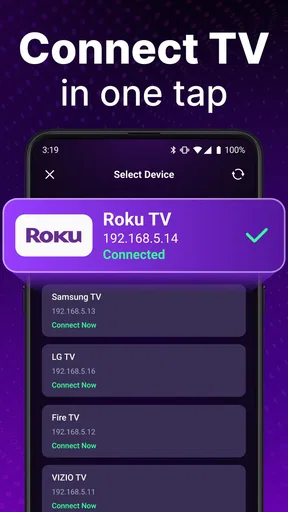
One useful habit is to check that the phone is on the same Wi-Fi network as the Roku TV before troubleshooting the app. If the television does not appear, confirming the network is a sensible first step; restarting the app or reconnecting the phone to the household network is more practical than repeatedly tapping a device list. This dependency is also the key trade-off: a phone remote is convenient when the network is working, but it is not a dependable substitute for a physical remote in every situation.
What to check before relying on it
Think about who else uses the television and how it is connected. If guests, children, or other household members need to control it, a phone app can be less straightforward than leaving a dedicated remote on the table. A phone may be charging, in another room, or being used for something else. I’d treat the app as a handy backup or an everyday option for people who already keep their phone close, rather than assuming it must replace the original remote.
Worth Reading Before You Choose

EA SPORTS FC Mobile 26 Is a Bigger Football Game, but It Takes Time

Flipboard Shows What News Apps Must Do Beyond the Feed

Switching to Android Auto Means Rethinking Your Driving Routine

Google Calendar Makes a Crowded Week Easier to Manage

Ludo King Makes the Most of the Minutes Between Plans

Baby Panda World Brings Quick Play to Modern Phones, but Its Game Library Feels Busy
It is also worth considering your Wi-Fi layout. A weak or interrupted connection can make a remote app feel inconsistent, even if the buttons themselves are simple. If the TV and phone are separated by network settings or the phone has switched to a different network, discovery may not work as expected. For a user who wants immediate control regardless of Wi-Fi, the original Roku remote—or a compatible physical replacement—is the safer choice.
The app comes from Video downloader for all, a developer name that does not describe a Roku-focused product particularly clearly. I would therefore make the decision based on whether the app works well with your own television and whether its controls suit your routine, rather than assuming that the developer name signals a wider feature set. It is a tools app, and its appeal is specific: bringing Roku TV controls onto a smartphone.
Getting Started
Setting up the app is a breeze. First things first, make sure your phone and Roku TV are on the same Wi-Fi network. Once that’s sorted, download the app from the Play Store or App Store. It’s free, which is always a plus. After installation, the app auto-detects your Roku device. No complicated pairing process – just tap and go!
Features That Stand Out
Okay, let’s talk features. The TV Remote control for Roku TV isn’t just a replacement for your physical remote; it offers a bunch of cool extras. The voice command feature is super handy. Just tap the mic icon, speak your command, and boom – it’s like having a personal assistant.
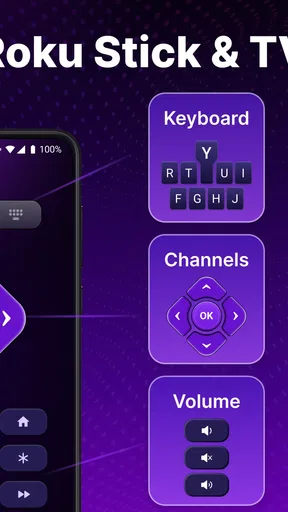
Another neat feature is the keyboard. Typing out searches on a TV remote can be a nightmare, but with this app, you can use your phone’s keyboard. It makes searching for shows and movies way less annoying.
User Experience
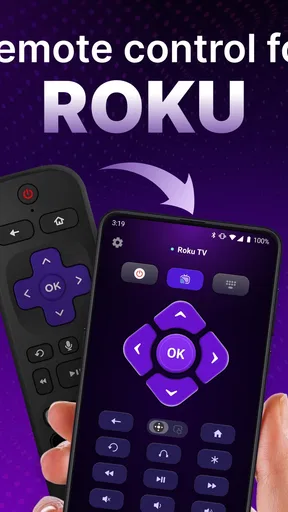
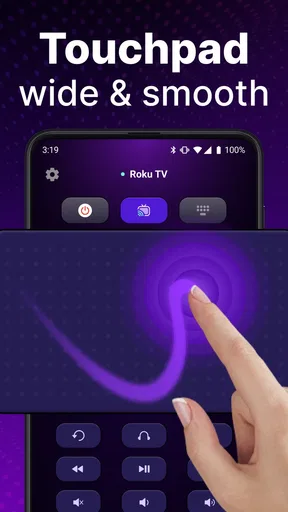
The user interface is clean and intuitive, so you won’t need a manual to figure things out. The buttons are large and responsive, mimicking the layout of a traditional remote. I also appreciate the haptic feedback – gives a nice little buzz to confirm your commands.
I’ve found the app to be pretty reliable. There’s minimal lag between pressing a button and seeing the action on your TV screen, which is crucial for those intense binge-watching sessions.
Some Quirks
Of course, no app is perfect. Sometimes, if the Wi-Fi connection is spotty, the app can disconnect. It’s not a dealbreaker, but it’s something to keep in mind. Also, while the app is free, there are ads unless you upgrade to the premium version. They’re not too intrusive, but they’re there.
One thing I’d love to see in future updates is compatibility with other smart home devices. Imagine using this app to dim the lights as you start a movie – now that would be awesome!
Comparing the alternatives
Compared with using the buttons on the television itself, a phone remote is usually more comfortable for browsing and searching from the sofa. Compared with the original Roku remote, it has the advantage of being on a device you may already have beside you, and the phone keyboard can make title searches easier. The physical remote still has an important edge: it is purpose-built, does not depend on your phone being available, and can be picked up by anyone in the room without unlocking or handing over a smartphone.
A third-party universal remote is worth considering if your goal is to operate multiple pieces of equipment with one physical controller. That is a different problem from this app’s focused Roku TV role. I would not choose this app expecting it to control every device in a living room; I’d choose it to make Roku TV navigation more convenient from a phone. If you only need occasional control and already have a working Roku remote, the app is a useful backup rather than a necessary replacement.
Free to try, with a paid upgrade to weigh
The app is free to install, and its in-app purchases range from $4.49 to $24.99 per item. Since the free experience includes ads, the real decision is whether those interruptions bother you enough to consider paying. I would first use the free version during ordinary viewing: try discovery, navigation, voice input, and a couple of searches. That gives you a clearer sense of whether the app fits your habits before spending anything.
There is also a practical switching cost beyond money. If you replace your usual remote entirely, you will need to keep your phone close and charged, and you may have to reconnect when the network changes. If you keep both options available, the app can cover moments when the physical remote is missing while the original remains ready for guests or network trouble. That hybrid approach is more dependable than expecting a phone to solve every remote-control problem.
Details that help set expectations
The app is rated for Everyone, has a 4.7 average from around 20,000 ratings, and has been installed over a million times. It was released on April 22, 2025, and version 1.2.6 is listed for devices running Android 9 or later. Those figures make it a widely tried option, but they do not remove the need to check that it suits your particular TV and home network. Compatibility in practice is most important when you rely on device discovery and Wi-Fi communication.
If you are deciding whether to install it, ask yourself how often you lose the remote, how frequently you type searches, and whether your phone is usually within reach while watching. Those are better predictors of usefulness than the promise of having another control method. Someone who rarely searches and always keeps a physical remote nearby may gain little; someone who often searches or wants a backup can get more day-to-day value.
Final Thoughts
All in all, the TV Remote control for Roku TV app is a solid choice if you’re tired of losing your remote or just want a more versatile option. It’s free, easy to use, and packed with useful features. Whether you’re a tech-savvy user or just someone who loves convenience, this app is worth a try.
So, go ahead and give it a shot! You might find it’s the only remote you’ll ever need.
Pros
- Easy setup with a user-friendly interface.
- Supports voice commands for convenience.
- Customizable remote layout options.
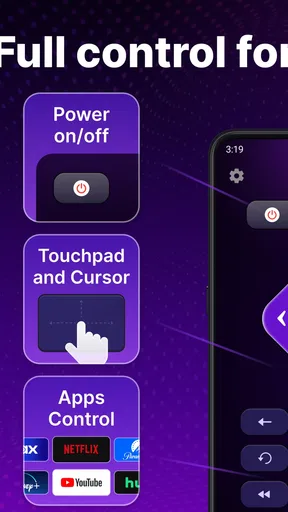
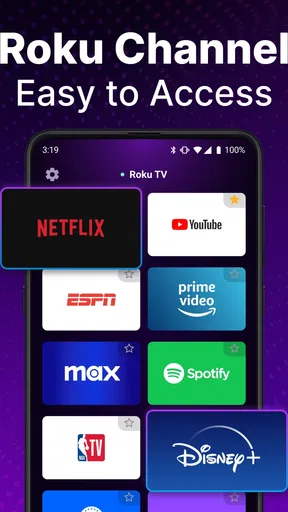
- Quick access to popular streaming apps.
- Works without needing a physical remote.
Cons
- Limited to Roku devices only.
- Requires stable Wi-Fi connection.
- Ads can be intrusive at times.
- May drain battery quickly on older phones.
- Some features require in-app purchases.
FAQs for TV Remote control for Roku TV
How do I set up the TV Remote Control for Roku TV?
To set up the TV Remote Control for Roku TV, first ensure your smartphone and Roku TV are connected to the same Wi-Fi network. Download the app from your device's app store, open it, and follow the on-screen instructions to pair it with your Roku TV. The app should automatically detect your TV if both devices are on the same network.
Is the TV Remote Control app compatible with all Roku TV models?
The TV Remote Control app is compatible with most Roku TV models. However, it's crucial to check the app’s compatibility list on the app's download page to ensure it supports your specific model. If your Roku TV is a relatively recent model, you should have no issues with compatibility.
Can I use voice commands with the TV Remote Control app?
Yes, many TV Remote Control apps for Roku TV include voice command features. This functionality allows you to search for shows, change channels, and control playback using your voice. Be sure to enable microphone permissions in your device settings to use this feature effectively.
Does the app require any in-app purchases?
While the basic features of the TV Remote Control app are usually free, some advanced functionalities may require in-app purchases. These can include ad-free experiences, additional customization options, or enhanced control features. Review the app's description for a detailed breakdown of available in-app purchases.
What should I do if the app is not connecting to my Roku TV?
If the app isn't connecting to your Roku TV, first ensure both devices are on the same Wi-Fi network. Restart both your smartphone and Roku TV, and try reconnecting. If the issue persists, check for app updates or reinstall the app to resolve any potential software glitches.


